
How to Fix “Page Not Indexed” Issues
In the world of Search Engine Optimization (SEO), there is no hurdle more frustrating than the “Page Not Indexed” status. You have spent hours researching keywords, crafting compelling copy, and optimizing images, only to find that your page is invisible. If a page isn’t in Google’s index, it essentially does not exist to the billions of people using search engines every day. It cannot rank, it cannot drive traffic, and it cannot convert visitors into customers.
Indexing is the bridge between content creation and search visibility. However, many website owners and digital marketers treat indexing as a guaranteed outcome rather than a technical process that requires maintenance. When you see the dreaded “Page Not Indexed” notification in your Google Search Console (GSC), it is easy to feel like the search engine is working against you.
Read: Web Design Tips and Rules to Follow
The reality is that indexing issues are usually technical signals or quality assessments. Whether it is a simple checkbox hidden in your Content Management System (CMS) or a complex crawl budget issue on a large e-commerce site, these problems are solvable. This guide will provide a comprehensive, deep dive into identifying, diagnosing, and fixing indexing issues to ensure your content gets the visibility it deserves.
What Does “Page Not Indexed” Mean?
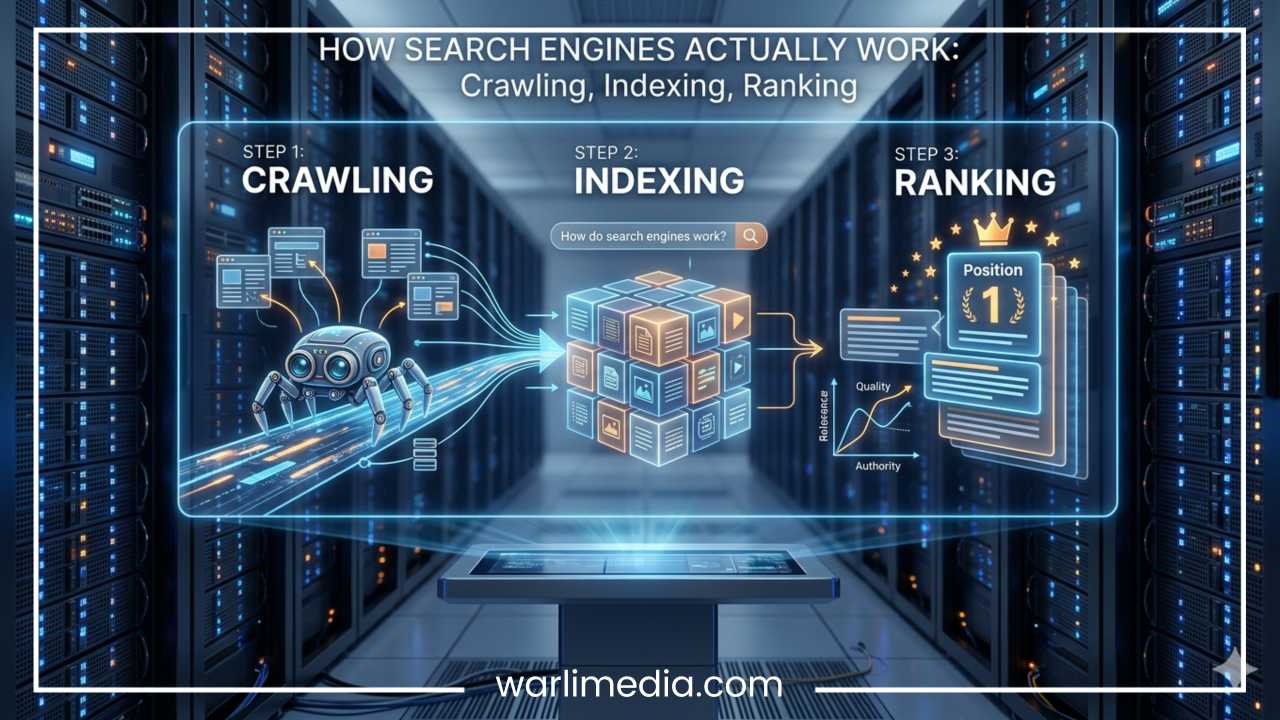
To understand why a page isn’t indexed, we must first understand the journey a URL takes through Google’s system. Many people use the terms crawling, indexing, and ranking interchangeably, but they represent distinct stages of the search pipeline.
Crawling
This is the discovery phase. Google uses automated programs called “spiders” or “bots” (Googlebot) to browse the web. They follow links from one page to another. If Google knows your URL exists, it has “discovered” it. If it has visited the URL to look at the code, it has “crawled” it.
Indexing
Once a page is crawled, Google analyzes its content, images, and metadata to understand what the page is about. If the page meets Google’s quality and technical standards, it is added to the Index—a massive database of all the web pages Google deems worthy of showing to users.
Ranking
Only after a page is indexed can it rank. Ranking is the process where Google decides which indexed pages are the most relevant answers to a specific user query.
The Indexing Pipeline
When a page is “Not Indexed,” the pipeline has broken down at some point. Either Google was blocked from seeing the page (crawling), decided the page wasn’t important enough to store (indexing), or encountered a technical error that prevented it from processing the data. “Page Not Indexed” is simply Google’s way of saying, “I know about this URL, but I haven’t added it to my library.”
Read: Top Tips for Developing a Website That Converts
Where to Check Indexing Issues
Before you can fix the problem, you need to find where the “leak” is occurring. There are three primary ways to monitor your site’s indexing health.
Google Search Console (GSC)
GSC is the definitive source of truth for indexing. The Page Indexing Report (formerly the Coverage Report) provides a breakdown of which pages are indexed and which are not. It categorizes non-indexed pages into specific buckets like “Excluded by ‘noindex’ tag” or “Crawled – currently not indexed.” This report should be your starting point for any audit.
URL Inspection Tool
If you have a specific page in mind, paste the URL into the search bar at the top of GSC. This tool provides a real-time look at how Google sees that specific page. It will tell you if the page is on Google, when it was last crawled, and if there are any mobile usability or schema issues holding it back.
Site Search (site:yourdomain.com)
For a quick, “rough-and-ready” check, go to Google and type site:yourdomain.com/your-specific-page. If the page appears in the results, it is indexed. If it says “Your search did not match any documents,” it is missing from the index. While less detailed than GSC, this is the fastest way to confirm if a page is live in the public index.
Read: Few Mistakes to Avoid in Web Designing
Common Reasons Pages Are Not Indexed
Understanding the “why” behind indexing failures is the bulk of the battle. Here are the most frequent culprits found in modern SEO.
1. Noindex Tag
A “noindex” tag is a piece of code that explicitly tells search engines: “Do not put this page in your database.” This can be implemented via a Meta Robots tag in the HTML <head> or via an HTTP header. Often, these tags are accidentally left on after a site migration or a staging environment goes live.
2. Blocked by robots.txt
The robots.txt file is your site’s “instruction manual” for bots. If you have a Disallow: /category/ rule, Googlebot will respect that and stay away. If a page is blocked in robots.txt, Google cannot crawl it to see what is on it, which often leads to the page being excluded from the index.
3. Crawled – Currently Not Indexed
This is one of the most common statuses. It means Google visited the page but decided not to index it. This usually points to a quality issue. If the content is “thin” (too short), lacks originality, or provides no value compared to other pages already in the index, Google won’t waste its resources storing it.
4. Discovered – Currently Not Indexed
This status means Google knows the URL exists (likely via a sitemap or a link), but it hasn’t actually crawled it yet. For large websites, this often indicates a crawl budget problem. Google doesn’t think the page is high-priority enough to spend the “energy” required to crawl it right now.
5. Duplicate Content / Canonical Issues
Google prefers to index only one “unique” version of a page. If you have multiple URLs with the same content (e.g., product variations or tracking parameters), Google will choose one “canonical” version and exclude the others. If you have misconfigured your canonical tags, Google might exclude the page you actually want to rank.
6. Server Errors (5xx)
If Google tries to visit your page and your server crashes or times out, the crawl fails. Frequent 5xx errors signal to Google that your site is unstable, leading it to de-prioritize your pages for indexing to avoid sending users to a broken site.
7. Soft 404 Errors
A Soft 404 happens when a page tells a user “This page doesn’t exist,” but sends a “200 OK” success code to the server. This confuses Google. Usually, this happens on empty category pages or pages with very little content that Google perceives as “broken” or “missing.”
8. Redirect Issues
If a page is part of a “redirect chain” (Page A goes to B, which goes to C, which goes to D), Google may give up before reaching the final destination. Similarly, if a page redirects incorrectly to the homepage or a dead link, it won’t be indexed.
Step-by-Step Fixes for Each Issue
Once you have identified the cause in Google Search Console, use these steps to resolve them.
Fix 1: Remove Noindex Tags
Check your page source code (Right-click > View Page Source) and search for “noindex.” If you find <meta name="robots" content="noindex">, you must remove it.
WordPress Users: Go to Settings > Reading and ensure “Discourage search engines from indexing this site” is unchecked.
SEO Plugins: Check individual page settings in Yoast or RankMath to ensure indexing is set to “Yes.”
Fix 2: Update robots.txt
Navigate to yourdomain.com/robots.txt. Look for Disallow: lines that might be hitting your important pages.
Action: Use the Google Robots Testing Tool to see if your specific URL is being blocked. If it is, edit your
robots.txtfile to “Allow” that path or remove the restrictive “Disallow” rule.
Fix 3: Improve Content Quality
If your page is “Crawled – currently not indexed,” you need to prove its value.
Add Depth: Increase word count with meaningful information.
Originality: Ensure the content isn’t just a copy of another page.
Multimedia: Add images, videos, or infographics to make the page more engaging.
FAQs: Use structured data (Schema) to answer common questions related to the topic.
Fix 4: Fix Internal Linking
A page with no internal links is an “orphan page.” Google finds it hard to deem these pages important.
Action: Link to the “Page Not Indexed” from 3 to 5 high-authority, already-indexed pages on your site. Use descriptive anchor text to tell Google what the target page is about.
Fix 5: Submit URLs to Google
Sometimes Google just needs a nudge.
Action: Go to the URL Inspection tool in GSC, enter the URL, and click Request Indexing.
Sitemaps: Ensure the URL is included in your XML sitemap and that the sitemap is submitted under the “Sitemaps” tab in GSC.
Fix 6: Resolve Duplicate Issues
Ensure every page has a self-referencing canonical tag unless it is a duplicate of another page.
Action: If Page A is a duplicate of Page B, Page A should have a canonical tag pointing to Page B. If you want Page A to be the one indexed, ensure Page B points to A, and all internal links point to A.
Fix 7: Fix Technical Errors
Server Health: Talk to your hosting provider if you see frequent 5xx errors.
Speed: Use PageSpeed Insights. If a page takes 10+ seconds to load, Google might abort the crawl.
Mobile Friendliness: Since Google uses mobile-first indexing, a page that is broken on mobile may be excluded from the index entirely.
How to Diagnose Indexing Problems Like a Pro
Professional SEOs don’t just guess; they use a systematic checklist to narrow down the problem. When a page isn’t indexing, ask these questions in order:
| Step | Question | Tool |
| 1 | Is the URL actually “known” by Google? | GSC (Discovered) |
| 2 | Does the robots.txt allow the crawl? | Robots.txt Tester |
| 3 | Is there a “noindex” tag in the HTML? | View Source / GSC |
| 4 | Does the page load quickly (HTTP 200)? | Browser DevTools |
| 5 | Is the content unique and valuable? | Manual Review |
| 6 | Is the page linked from the main menu or footer? | Manual Review |
Using Screaming Frog
For larger sites, use a crawler like Screaming Frog. It can crawl your entire site and export a list of all pages with “noindex” tags, canonical mismatches, or 404 errors in one spreadsheet. This allows you to see patterns—for example, if an entire category of products is missing from the index due to a shared template error.
Advanced Tips to Get Pages Indexed Faster
If you are in a competitive niche or have a news-heavy site, you cannot wait weeks for Google to “find” your content. Use these advanced tactics to speed up the process.
Build Backlinks
A single backlink from an external, high-authority site is the strongest signal to Google that a page is worth indexing. Even a social media share or a link from a partner site can trigger a crawl.
Improve Crawl Frequency
Google crawls active sites more often. If you publish content daily, Googlebot will visit your site daily. If you publish once every six months, Googlebot will visit less frequently. Consistency improves indexing speed.
The “Power Hub” Strategy
Create a “hub” page (like a “Ultimate Guide” or “Resources” page) that is already well-indexed and ranks well. Link your new, unindexed pages from this hub. The “link equity” and bot activity on the hub page will spill over to the new URLs.
API Indexing
For sites with high turnover (like job boards or real-time event sites), you can use the Google Indexing API. While officially recommended for job postings and live stream videos, many SEOs use it to get standard pages crawled within minutes.
Common Mistakes to Avoid
In the rush to get indexed, many site owners make mistakes that can actually hurt their long-term SEO.
Publishing Bulk “AI-Thin” Content: Generating thousands of pages with low-quality AI text will trigger “Crawled – currently not indexed” errors across your whole site, damaging your overall site authority.
Blocking JS/CSS: Google needs to see your CSS and Javascript to understand the layout. If your
robots.txtblocks these, Google might think the page is broken and refuse to index it.Over-reliance on the “Request Indexing” Tool: This tool has a daily limit. It is a “band-aid,” not a permanent fix. If you have 1,000 pages not indexed, you cannot manually request each one. You must fix the underlying technical issue.
Ignoring the Mobile Version: A page might look perfect on a desktop but have “content wider than screen” issues on mobile. Because Google is mobile-first, mobile errors are indexing killers.
How Long Does Indexing Take?
The timeline for indexing varies wildly based on site authority and technical health.
Established High-Authority Sites: 1 minute to 24 hours.
New or Small Websites: 4 days to 4 weeks.
Large E-commerce Sites (Deep Pages): Up to several months.
If a page isn’t indexed after a month, and you have requested indexing manually, there is almost certainly a technical or quality blocker that needs your attention.
Final Thoughts
“Page Not Indexed” is not a permanent death sentence for your content. It is a diagnostic signal. By using Google Search Console to identify the specific error—whether it’s a “noindex” tag, a crawl budget issue, or thin content—you can take the necessary steps to bring your page into the light.
Success in SEO requires a balance of technical precision and content excellence. Ensure your server is stable, your robots.txt is welcoming, and your content provides genuine value to the user. Regular monitoring of your indexing status will ensure that when you hit “Publish,” your hard work actually reaches the audience it was intended for. Regular audits, a clean internal linking structure, and a focus on quality will keep your site healthy and visible in the ever-evolving search landscape.
Quick Checklist for Indexing Fixes
Verify the URL in Google Search Console URL Inspection Tool.
Check for
noindextags in the<head>of the page.Confirm the page isn’t blocked in
robots.txt.Ensure the page has at least 3-5 internal links from other pages.
Improve content if it is marked as “Crawled – currently not indexed.”
Request Indexing manually once fixes are implemented.
Check the canonical tag to ensure it points to the correct URL.