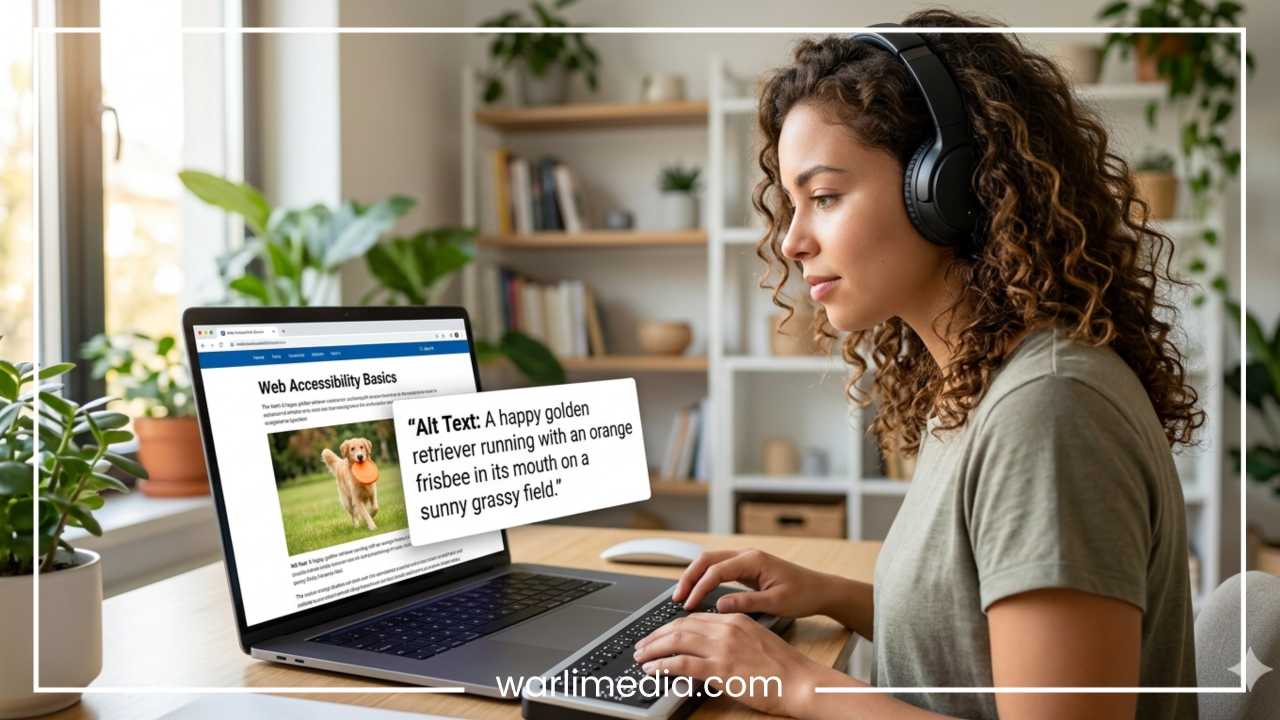
Alt Text Explained: Why It Matters and How to Write It
The modern internet is an overwhelmingly visual medium. From high-resolution product photography and data-driven infographics to casual blog graphics and social media memes, images shape how we consume information online. However, this visual-first landscape creates a significant barrier for millions of internet users who experience the web differently. It also presents a challenge for search engine algorithms, which cannot “see” an image the way a human being does.
This is where alternative text, universally known as alt text, becomes indispensable. Alt text serves as a bridge between visual media and textual understanding. It is a critical component of web development, digital marketing, content creation, and user experience design. Despite its critical role, alt text is frequently misunderstood, poorly executed, or completely neglected.
Writing effective alt text requires balancing the needs of human users who rely on assistive technologies with the requirements of automated search engine crawlers. This comprehensive guide will explore what alt text is, why it is fundamental to building an inclusive and highly visible website, and how to craft descriptive alternatives that benefit everyone. By mastering this simple yet powerful element of web content, you can enhance your user experience, satisfy legal compliance guidelines, and improve your search engine optimization strategy.
Read: Does Mobile Optimization Impact SEO Rankings?
What Is Alt Text?
Alternative text, or alt text, is a descriptive textual attribute applied to an image element within a web page’s HTML code. Its primary purpose is to provide a comprehensive text-based substitute for visual content. When an image cannot be viewed, the alt text conveys the meaning, context, and purpose of that visual asset to the user.
In technical terms, alt text resides within the image tag as an attribute. It is invisible to the average user browsing a fully functional website on a high-speed internet connection. It does not appear as a visible caption beneath the image, nor does it display as a tooltip when a user hovers their mouse cursor over the graphic. Instead, it lives silently in the source code, waiting to be called upon when needed.
For example, a standard implementation of an image with alt text in HTML looks like this:
img src=”dog.jpg” alt=”Golden retriever playing fetch in a park”
In this example, the image source points to a file named dog.jpg, while the alt attribute provides an explicit description of what the image depicts.
When a browser processes a web page containing this code, the alt text fulfills several essential functions depending on how the page is accessed:
Assists Screen Readers: For individuals who are blind or visually impaired, assistive software called a screen reader reads the text on the screen aloud. When the screen reader encounters an image, it reads the alt text attribute to inform the user of the image’s content.
Displays During Loading Failures: If a website experiences a server disruption, a broken file path, or an incredibly slow internet connection, the browser may fail to download and render the image file. In this scenario, the browser displays a broken image icon alongside the alt text, ensuring the user still understands what was supposed to appear there.
Informs Search Engine Crawlers: Search engines deploy automated bots to crawl, index, and understand web content. While computer vision technology has advanced significantly, search engines still heavily rely on textual descriptions to comprehend the exact context, subject matter, and relevance of an online image.
Read: How Can I Improve My Website’s Search Engine Ranking?
Why Alt Text Is Important
The implementation of alt text is not merely a superficial recommendation or a minor technical detail. It carries immense weight across multiple areas of digital operations, affecting accessibility, user experience, search visibility, and legal compliance.
Accessibility
The primary and most vital function of alt text is ensuring digital accessibility. The internet is a global public utility, yet without alternative text, a vast portion of it remains completely locked away from individuals with visual impairments. According to global health statistics, hundreds of millions of people live with some form of visual impairment, ranging from mild low vision to complete blindness.
People within this demographic frequently utilize screen readers to navigate websites, read articles, shop online, and complete professional tasks. When an image lacks alt text, a screen reader is forced to skip the element entirely or, worse, read out the raw image file name (such as DSC_4892.png). This creates a jarring, confusing, and alienating experience for the user. Providing descriptive alt text creates an equitable, inclusive environment where all users can access the same core information.
User Experience
While accessibility focus often centers on permanent disabilities, web design must also accommodate situational or environmental limitations. This is where alt text directly impacts general user experience (UX).
Consider a user trying to access an informational website while commuting through an area with poor cellular coverage. If a page contains a vital step-by-step diagram, but the high-resolution image fails to load due to a weak connection, the user is left stranded. If the developer included descriptive alt text, the text-based breakdown loads instantly, allowing the user to read the instructions without missing a beat. Similarly, users who deliberately disable image loading to conserve mobile data usage rely entirely on alt text to navigate the visual portions of the web.
SEO Benefits
From a marketing and visibility perspective, alt text is a cornerstone of on-page search engine optimization (SEO). Search engine algorithms are incredibly proficient at analyzing text, semantic relationships, and page structure, but they struggle to interpret the nuanced context of visual elements without explicit clues.
By adding descriptive alt text, you provide search engines with highly contextual data about your imagery. This directly influences your visibility in image search results, which represents a massive source of organic web traffic for e-commerce stores, educational blogs, and news sites. Furthermore, well-crafted alt text reinforces the topical relevance of the surrounding copy, signaling to search engines that your page provides a comprehensive, cohesive resource on a specific subject.
Legal Compliance
In the modern regulatory landscape, digital accessibility is increasingly viewed as a civil right rather than an optional feature. Governments and international bodies have established strict guidelines to enforce equal access to digital environments.
The Web Content Accessibility Guidelines (WCAG) serve as the gold standard for digital accessibility. WCAG explicitly mandates that all non-text content presented to the user must have a text alternative that serves the equivalent purpose. In many jurisdictions, compliance with WCAG principles is tied directly to legal frameworks, such as the Americans with Disabilities Act (ADA) in the United States or the European Accessibility Act (EAA) in Europe. Failing to provide alternative text can expose businesses, educational institutions, and public entities to costly legal demands, discrimination lawsuits, and brand damage.
Read: Are There Any Penalties for Black-Hat SEO Techniques?
How Screen Readers Use Alt Text
To write effective alt text, it helps to understand how assistive technologies interact with a web page. A screen reader is a software application that converts digital text into synthesized speech or a refreshable Braille display. Users navigate a page by utilizing keyboard shortcuts to jump between headings, links, paragraphs, and media elements.
When a screen reader encounters an image element while scanning a page, its behavior is determined entirely by the presence and quality of the alt attribute.
Navigation Without Alt Text
If an image lacks an alt attribute entirely, the screen reader must make a choice based on its built-in settings. In many cases, it will announce the word “Image” or “Graphic,” followed by the file name extracted from the HTML source code.
Imagine a blind user listening to an educational article on history. The screen reader suddenly announces:
“Graphic, image-final-version-v2-uploaded-october-fixed-width-300px-dot-jpg.”
This output provides zero contextual value, interrupts the flow of information, and forces the user to guess what historical artifact, map, or portrait was presented to sighted readers.
Navigation With Alt Text
When an image is properly optimized with alternative text, the user experience changes dramatically. The screen reader automatically recognizes the element as an image and smoothly reads the content of the alt attribute.
For instance, consider a lifestyle blog post featuring an image of a professional workspace. A properly configured screen reader will read the page text, pause briefly at the image, and state:
“Woman using a laptop while working from home.”
This gives the user an instantaneous mental picture of the layout, allowing them to comprehend the visual tone and context of the article before moving seamlessly to the next paragraph. Because the screen reader automatically identifies the element as a graphic, there is no need for the content creator to include phrases like “An image of” inside the text itself. The software takes care of that technical designation natively.
Types of Images and Their Alt Text Requirements
Not all images on a website serve the same purpose. A product photo fulfills a completely different role than a navigational arrow icon or a complex data chart. To ensure your website remains organized, accessible, and clean, you must categorize your images and apply alt text based on their specific functional type.
Informative Images
Informative images are graphics that visually convey concepts, information, or emotions that are central to the surrounding written content. These are the pictures that provide substance to an article, news report, or product page.
Examples: Photos of a specific product on an e-commerce store, a photograph of a political figure in a news report, or an image showcasing a specific technique in a cooking recipe tutorial.
Alt Text Requirement: The alternative text must clearly communicate the core information conveyed by the graphic. If it is a product photo, it should describe the item’s appearance, color, and defining features.
Functional Images
Functional images do not exist to tell a story or set a mood; instead, they initiate an action. These images are wrapped inside a link or a clickable button element, acting as the visual trigger for a user command.
Examples: A shopping cart icon that leads to a checkout page, a printer icon that opens a print dialog box, a magnifying glass icon acting as a search submit button, or a downloadable PDF icon.
Alt Text Requirement: The alt text for a functional image must absolutely describe the action the button performs, rather than describing what the icon looks like. For example, a magnifying glass icon should have alt text reading “Search site” instead of “Black magnifying glass.”
Decorative Images
Decorative images add purely aesthetic value to a web page. They do not contribute any new information, context, or functional utility to the user. If these images were removed from the page completely, the reader would lose absolutely no understanding of the content.
Examples: Stylized background borders, abstract geometric patterns separation sections of text, or ambient stock photography that merely mirrors a concept already explained completely in an adjacent sentence.
Alt Text Requirement: Decorative images must use a completely null or empty alt attribute. It is written in the HTML source code as:
alt=""
When a screen reader encounters an empty alt attribute, it knows to skip over the image entirely without announcing its presence. This prevents the user from being bombarded with useless announcements about decorative dividers or accent shapes. Crucially, you must still include the empty attribute template; omitting the alt attribute entirely causes the screen reader to read the file name instead.
Complex Images
Complex images contain a vast amount of structured information that cannot possibly be summarized in a single brief sentence.
Examples: Detailed line graphs, multi-layered bar charts, intricate flowcharts, data-heavy infographics, or historical architectural maps.
Alt Text Requirement: Complex images require a two-part approach. First, provide a short alt text identifier that gives an overview of the asset (e.g., “Line graph showing global temperature changes from 1900 to present”). Second, provide a detailed textual description or an organized data table directly within the surrounding web page text, or link out to a dedicated description page. This ensures that every data point is accessible to users who cannot view the chart visual.
How to Write Good Alt Text
Writing outstanding alt text is an art form that balances brevity, precision, and contextual awareness. There is no one-size-fits-all formula, but following a core set of principles ensures your descriptions are highly valuable to human users and search engines alike.
Be Specific
Avoid vague descriptions that leave too much room for interpretation. Focus on the defining characteristics of the subject matter, including the exact names of objects, specific colors, notable actions, and setting details.
Bad Alt Text: “Dog”
Good Alt Text: “Black Labrador swimming in a lake”
The first example tells the user almost nothing. The second example paints a clear, vivid mental picture of the breed, the activity, and the environment.
Be Concise
While detail is important, your descriptions should not turn into long, rambling paragraphs. Screen reader users appreciate efficiency, as listening to a minutes-long description of an ordinary image can quickly disrupt their browsing flow.
As a general benchmark, aim to keep your alt text within 80 to 125 characters. This is roughly equivalent to a short sentence. It provides enough space to capture all the essential details without overexplaining minor points or irrelevant background elements.
Describe the Purpose
For functional images or user interface elements, prioritize utility over visual aesthetics. Think about why the image exists on the page rather than what it looks like.
Visual Description: “Blue rectangle button with a downward pointing white arrow”
Purpose-Driven Description: “Download PDF guide”
A blind user clicking a button does not care about the color of the arrow; they want to know exactly what happens when they press it.
Include Relevant Context
The exact same image can require completely different alt text depending on the topic of the web page it resides on. Context dictates what elements of the image are important to highlight.
Imagine a photograph of a prominent business leader sitting at a wooden desk, drinking coffee from a ceramic mug, while wearing a tailored linen blazer.
If the image is on a business news site discussing leadership, the alt text should focus on the executive: “CEO Jane Doe sitting at her desk preparing for a quarterly presentation.”
If the image is on an interior design blog discussing office furniture, the alt text should focus on the environment: “Minimalist solid oak writing desk arranged in a modern home office.”
If the image is on a fashion retail site, the focus shifts entirely to the apparel: “Model wearing a beige, lightweight tailored linen blazer.”
Alt Text Best Practices
To integrate alt text seamlessly into your broader content workflows, adhere to these operational best practices.
Describe What Matters Most: Focus your word choice on the primary focal point of the visual asset. Ignore background noise, lens flares, or minor decorative details unless they add explicit meaning to the story.
Avoid Keyword Stuffing: Never treat your alt text fields as a dumping ground for search phrases you hope to rank for. This completely destroys the user experience for assistive technology users and can result in search engine penalties for spammy behavior.
Omit Redundant Phrases: Never start your text with phrases like “Image of,” “Picture of,” or “Graphic showing.” Screen readers natively inform the user that an element is a graphic, making these introductory phrases entirely redundant.
Use Proper Grammar: Treat alt text like normal editorial copy. Capitalize the first letter, use proper spacing, and end the description with a period. This ensures that screen reader software applies the natural inflections, pauses, and cadences of human speech when reading the line aloud.
Keep It Natural: Write descriptions that sound like they were authored by a person speaking to another person. If a description sounds robotic, clumsy, or forced when read aloud, revise it for clarity and conversational ease.
The table below outlines how common visual concepts can be translated from poor, lazy alt text into optimized, highly accessible text alternatives.
| Poor Alt Text | Better Alt Text |
| dog | Golden retriever catching a bright red frisbee mid-air |
| SEO | Marketing team reviewing an organic traffic analytics dashboard |
| laptop | Hands typing code on a laptop keyboard in a dimly lit office |
| chart | Bar chart illustrating a fifty percent increase in quarterly sales |
| shoes | Pair of red leather hiking boots with waterproof lining |
Common Alt Text Mistakes to Avoid
Even well-intentioned creators frequently make mistakes when implementing alt text. Being aware of these common pitfalls can save you time and prevent accessibility issues down the line.
Keyword Stuffing
Keyword stuffing is one of the most rampant mistakes driven by misguided SEO tactics. It involves loading an alt text attribute with a laundry list of keywords, completely ignoring the actual contents of the photo.
Incorrect Implementation:
alt="SEO services digital marketing SEO agency SEO consultant best marketer"Why it fails: If a screen reader encounters this photo, it will rattle off a series of disconnected marketing buzzwords. It provides zero value to a human user and signals low-quality automated behavior to modern search algorithms.
Overly Long Descriptions
Writing an entire essay inside an alt text attribute is a major usability error. Long blocks of text belong in the main body paragraphs of your webpage, where every visitor can read them easily. If your alt text stretches beyond two sentences, it needs to be trimmed down, with the deeper technical details moved into the surrounding page layout.
Missing Alt Text
Leaving the alt text attribute off an image tag entirely is the ultimate accessibility failure. Without the alt tag present, browsers cannot handle the element correctly, and screen readers will fall back to reading broken filenames. Every single image tag in your code must feature an alt attribute, even if it is completely blank for decorative purposes.
Generic Labels
Using generic placeholders or raw filenames as your alt text is entirely useless. Labels like image1.jpg, photo, graphic, or screenshot offer no context, fail to help search engines index the file, and create an incredibly annoying auditory experience for visually impaired visitors.
Repeating Nearby Text
Redundancy can quickly frustrate web users. If an image features an explicit text caption displayed directly beneath it on the webpage, your alt text should not repeat that caption word-for-word. Instead, the alt text should briefly describe the visual element itself, or be marked as decorative if the caption already covers all the relevant context.
Alt Text Examples for Different Industries
To see how these principles apply in the real world, let’s explore practical alt text examples tailored across a variety of major commercial and content industries.
Ecommerce
E-commerce relies heavily on rich visual descriptions to drive purchasing decisions. Sighted users look at a product photo to judge color, materials, cut, and quality. Your alt text must convey these details to visually impaired shoppers.
Alt Text Example: “Red leather hiking boots with waterproof lining, metallic lace hooks, and black rubber soles.”
Blogging and Media
Bloggers use images to break up text and add emotional depth to their storytelling. The alt text should reflect the setting, mood, or core action taking place in the editorial imagery.
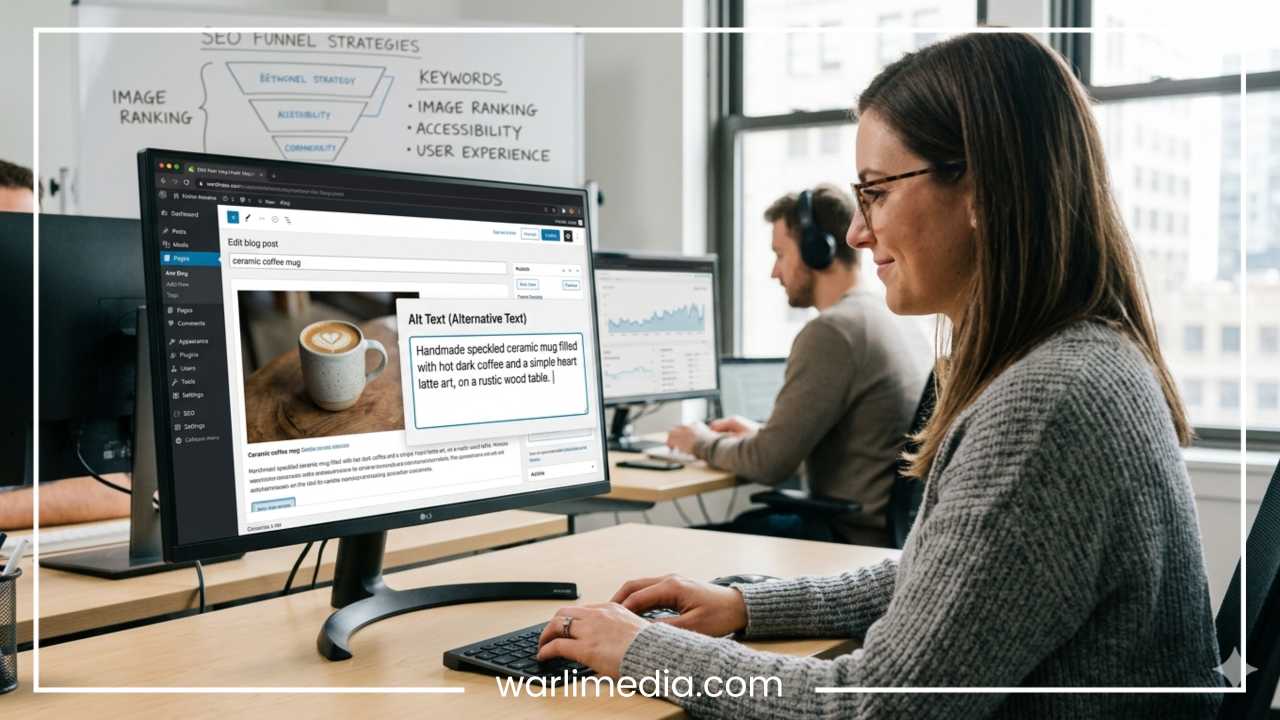
Alt Text Example: “Content marketer editing a blog article on a desktop computer in a bright, modern office space.”
Healthcare
Medical and healthcare platforms must prioritize accuracy, clarity, and professionalism. Images often show professionals, equipment, or educational scenarios.
Alt Text Example: “Doctor reviewing patient electronic records on a digital tablet during a consultation.”
Education
Educational websites, e-learning portals, and academic institutions have a strict legal and ethical obligation to maintain full accessibility compliance. Images should clearly outline the collaborative or academic action taking place.
Alt Text Example: “Two university students collaborating and looking through a microscope during a biology science experiment.”
Travel and Hospitality
Travel websites use breathtaking photography to sell experiences, destinations, and accommodations. The alternative text needs to evoke the imagery’s natural beauty and specific geographical highlights.
Alt Text Example: “Sunrise over the snow-capped peaks of the Himalayan mountains with a clear blue sky.”
Alt Text and SEO: What Google Says
There is a persistent myth in digital marketing that alt text is an underground trick to manipulate search rankings. The truth is much more straightforward: Google and other search engines champion alt text because it fundamentally improves the quality of the web for human users.
Google’s official documentation and developer guidelines explicitly state that search engines use alternative text along with computer vision algorithms and page content to understand the subject matter of an image. This data is critical for indexing images properly in Google Images.
When your images rank well in image search, you open up an entirely new stream of organic visibility. For industries like fashion, retail, interior design, food, and travel, image search is a prime discovery engine where users look for inspiration before clicking through to a website to make a purchase.
Furthermore, Google places a massive premium on general page accessibility and user experience. A website that is fully optimized for screen readers, loads quickly on slow connections, and features high-quality textual context presents a much stronger quality signal to search algorithms. Alt text is not an isolated ranking trick; it is an organic element of a user-first web strategy.
How to Add Alt Text in Popular Platforms
Adding alt text to your images does not require deep coding knowledge or manual HTML editing. Almost every modern Content Management System (CMS) and social media platform provides simple, intuitive fields to input alt text directly within their user interfaces.
WordPress
WordPress makes image optimization extremely simple through its built-in media controls.
Upload an image into the Media Library or add an image block directly inside the Gutenberg editor.
Click on the image to open its settings.
Locate the Alternative Text text box in the right-hand sidebar menu.
Type your descriptive text directly into the field.
Save or update the post.
Shopify
For e-commerce store owners, adding alt text to product images is vital for driving traffic via image search results.
Navigate to your Shopify admin panel and select Products.
Click on the specific product you wish to modify.
Scroll down to the Media section and click on the product photo.
Click the Add alt text pencil icon or link.
Input your descriptive product text and click Save.
Wix and Squarespace
Both of these popular website builders feature drag-and-drop interfaces with integrated image settings.
Wix: Click on the image within the editor, select the Settings gear icon, scroll down to the “What’s in the image?” input field, and enter your text.
Squarespace: Open the image editor panel, navigate to the content tab, locate the Alt Text field, and write your description.
Social Media Platforms
Social media channels have introduced robust accessibility settings to ensure user-generated content is open to everyone.
LinkedIn: After uploading an image to a post, look for the Add alt text button located directly on the image preview before publishing.
X (Twitter): Click the Add description or ALT badge on the bottom corner of an uploaded photo to open an accessibility description box.
Facebook & Instagram: Navigate to the advanced settings or edit options of a photo post to locate the custom alt text input fields.
Alt Text Checklist
Before publishing any new web page, article, or online asset, run your images through this quick verification checklist to ensure your text alternatives are fully optimized.
Accurate Description: Does the text describe the image content accurately without guessing or fabricating details?
Contextually Relevant: Does the description make complete sense when read alongside the surrounding article text?
Concise Length: Is the character count under control, keeping the total length around one short sentence?
Zero Keyword Stuffing: Are all the words natural, conversational, and completely free of spammy keyword blocks?
No Redundant Phrases: Have you completely removed useless introductory phrases like “Image of” or “Photo of”?
Decorative Formatting: Are all purely aesthetic background shapes, lines, or icons assigned an explicit empty alt attribute (
alt="")?Functional Meaning: Do all linked images and button icons clearly describe the action they perform rather than what they look like?
Future of Alt Text and AI
As artificial intelligence and computer vision technologies continue to evolve at a rapid clip, the process of generating alt text is shifting. Advanced AI models can now analyze an image file and generate automated text descriptions that are shockingly accurate.
Many enterprise-level content tools and accessibility plugins now leverage automated AI tagging to instantly generate descriptions for thousands of legacy images simultaneously. This technology offers incredible benefits for massive web properties, e-commerce stores with massive inventories, and archival sites that lack the manual resources to write descriptions by hand from scratch.
However, despite these technical leaps, human review remains completely irreplaceable. While an AI tool can accurately identify a “man sitting at a table with a laptop,” it cannot understand the exact underlying context of your specific article. It doesn’t know that the man is a specific historical figure, or that the laptop model matters to your tech review blog. Use automated AI tools to handle heavy lifting and initial drafting, but always employ a human editor to review, refine, and verify that the alt text is accurate, inclusive, and tailored to your brand’s unique context.
Final Thoughts
Alt text is a quiet champion of the modern internet. It is a simple string of text embedded within a webpage’s underlying code, yet it carries the power to make information accessible to millions of users, rescue a breaking user experience, and drive significant organic traffic through search engine visibility.
Building a truly accessible, visible website requires moving beyond viewing alt text as a tedious compliance box to check off at the end of a project. Instead, it should be treated as an essential, foundational step in your creative content and web development workflow.
Take the time to evaluate your existing digital presence. Auditing your website’s media library, updating missing alt attributes, and training your content creation team to write specific, concise, and context-driven text alternatives will elevate your user experience, broaden your digital reach, and help cultivate a more inclusive, open web environment for everyone.
Frequently Asked Questions About Alt Text
What is the difference between alt text and image title?
While both are HTML image attributes, they serve completely different purposes. Alt text is a mandatory accessibility attribute read aloud by screen readers and indexed by search engines to describe an image’s content. An image title is an optional attribute that creates a visual pop-up tooltip when a desktop user hovers their mouse cursor over the image. Image titles do not provide accessibility value and have no direct impact on search engine optimization.
How long should alt text be for SEO and accessibility?
The ideal length for alternative text is between 80 and 125 characters, which is roughly equivalent to one short, descriptive sentence. This length provides enough space to convey specific details for search engine indexing without overwhelming or fatiguing screen reader users who rely on efficient text translation.
Does alt text help image search rankings on Google?
Yes, alternative text is one of the primary on-page optimization signals Google uses to understand the context and subject matter of visual content. Providing high-quality, descriptive alt text directly improves your chances of ranking in Google Images search results, which can drive a substantial stream of highly targeted organic traffic to your website.
When should you leave alt text blank for an image?
You should leave the alt text attribute completely blank (alt="") when an image is purely decorative and carries no informational value. Examples include background patterns, decorative lines, abstract section dividers, or ambient stock photos that merely repeat concepts already fully explained in the adjacent text. Marking these as blank tells screen readers to skip them entirely, preventing a cluttered user experience.
How do you write alt text for complex charts and infographics?
For complex graphics that cannot be summarized in a single sentence, use a two-part approach. First, provide a concise summary in the alt text field identifying the type of graphic and its main takeaway (e.g., “Bar chart showing a fifty percent increase in organic website traffic over twelve months”). Second, provide a detailed textual breakdown or an organized data table directly within the main body text of the webpage so it is accessible to all users.
Can you use punctuation and symbols in alternative text?
Yes, you should always use standard punctuation, capital letters, and periods in your descriptions. Screen reader software relies on correct grammar and punctuation to apply natural pauses, voice inflections, and sentence breaks when reading the text aloud. However, avoid using special symbols, emojis, or decorative keyboard characters, as these can cause screen readers to output confusing, repetitive audio.